Options for adding YouTube to the service: personal channel and brand channel
The YouTube API limitation allows you to add a channel to the service only on behalf of a user with Owner or Administrator rights.
At the same time, there are currently 2 types of channels on YouTube — personal channels and brand channels.
A personal channel can have only one owner. Role management in YouTube Studio does not allow adding an external user as an Administrator. The maximum possible role through Studio for a personal channel is Manager, and unfortunately, that is not sufficient to connect such a channel to the service.
That is, when connecting, you need to log into Google as the primary (and only) owner of such a channel.
Another option is to convert your personal channel into a brand channel linked to a Google brand account.
This offers several advantages. For example, you will be able to provide secure access to third-party specialists to work on your channel, including with Owner or Administrator roles.
You can view the list of your brand accounts by following thelink. If a brand account has already been created, you will see it in the list.
If not,you can create an account for a company or brand when creating a new YouTube channel.
You can learn about the different levels in YouTube and how to get more advanced features in thisarticle.
Creating a Brand Account
- Go to thechannel list
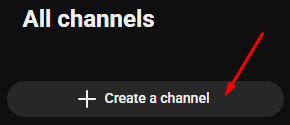
- Click "Create a channel"
- Choose an avatar, enter a name and handle
- Click "Create channel" button
After creating the channel, check the brand account inavailable Google accounts; the new account should appear in the list.

Linking a Personal YouTube Channel to a New Brand Account
Next, you need to link the new brand account to your personal YouTube channel to which you want to add new users.
- Log into your account. You need the Settings - Advanced settings section
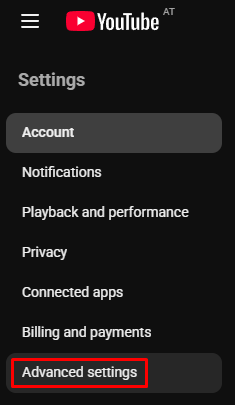
- Select "Move channel to a brand account"

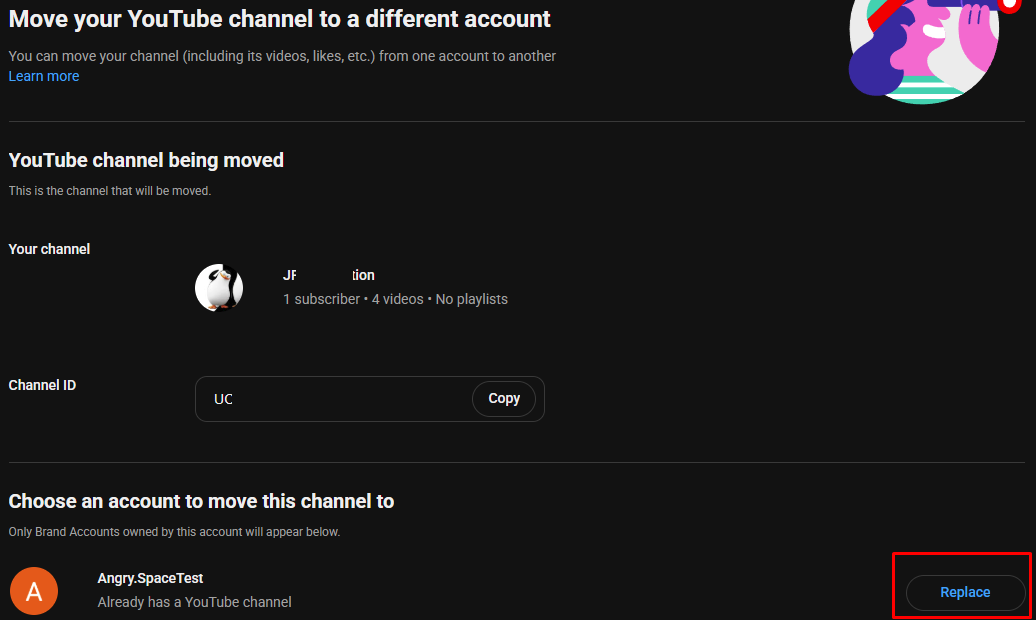
- Make sure the correct channel and brand account are selected, and click "Replace"
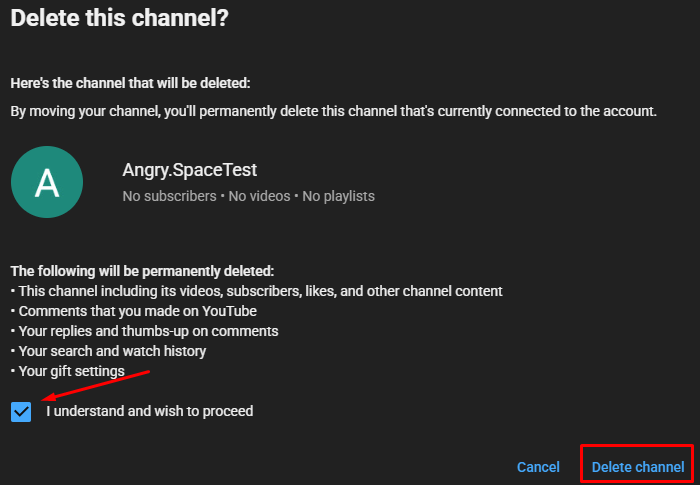
- Next, you need to remove the existing link between the brand account and the channel you used to create the account. Verify the information; if everything is correct, check the checkbox and click "Delete channel"
- Now you can transfer your personal channel and link it to the brand account. Click "Move channel".
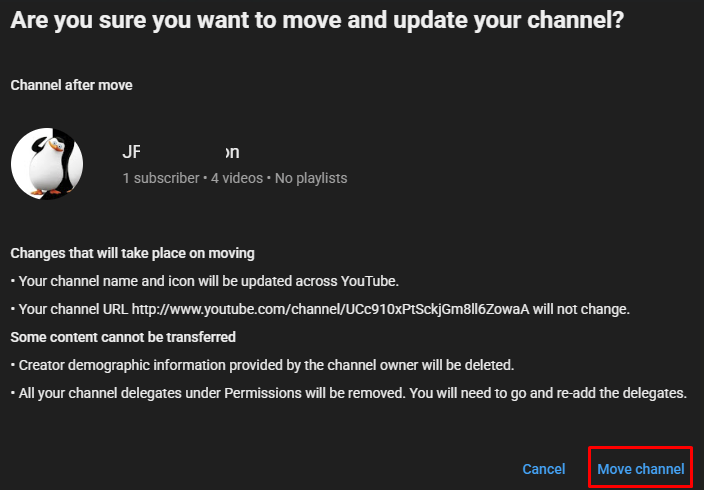
If everything is done correctly, your channel will be linked to the new account. The information will update within 10 minutes.
Adding New Administrators
After linking the channel and the brand account, adding new users and granting them Administrator or Owner rights can only be done through the account settings.
To do this
- Go to theaccount settings in YouTubeand click "Add or remove manager(s)"

- Click "Manage permissions" button
- In the upper right corner, click on the user invitation icon, then enter the email of the user you want to assign as Owner or Manager, and select the desired role
- Next, click "Invite" button
- An invitation email will be sent to the specified user's email address. In that email, they will need to click the "Allow" button. After that, the new user will be able to add the channel to the service by logging in with their Google account.