What type of notifications does the service send?
You can customize your Angry.Space social profiles to receive notifications of new comments and direct messages received.
The service will also send notifications if the author edits a comment after the comment has been handled by the operator.
Service admins can receive email notifications on the pay period end and incoming payments.
If you are usingIssues, you will be sent notifications about new and overdue tasks assigned to you.
Also, email notifications are sent to the space administrator when any problems arise with connected accounts.
Choose where you'd prefer to receive notifications - email, Telegram, or Slack.
You can also turn on push-notifications (separately for mobile and stationary devices) and sound notifications.
If you have multiple companies created, select which companies to send notifications for.
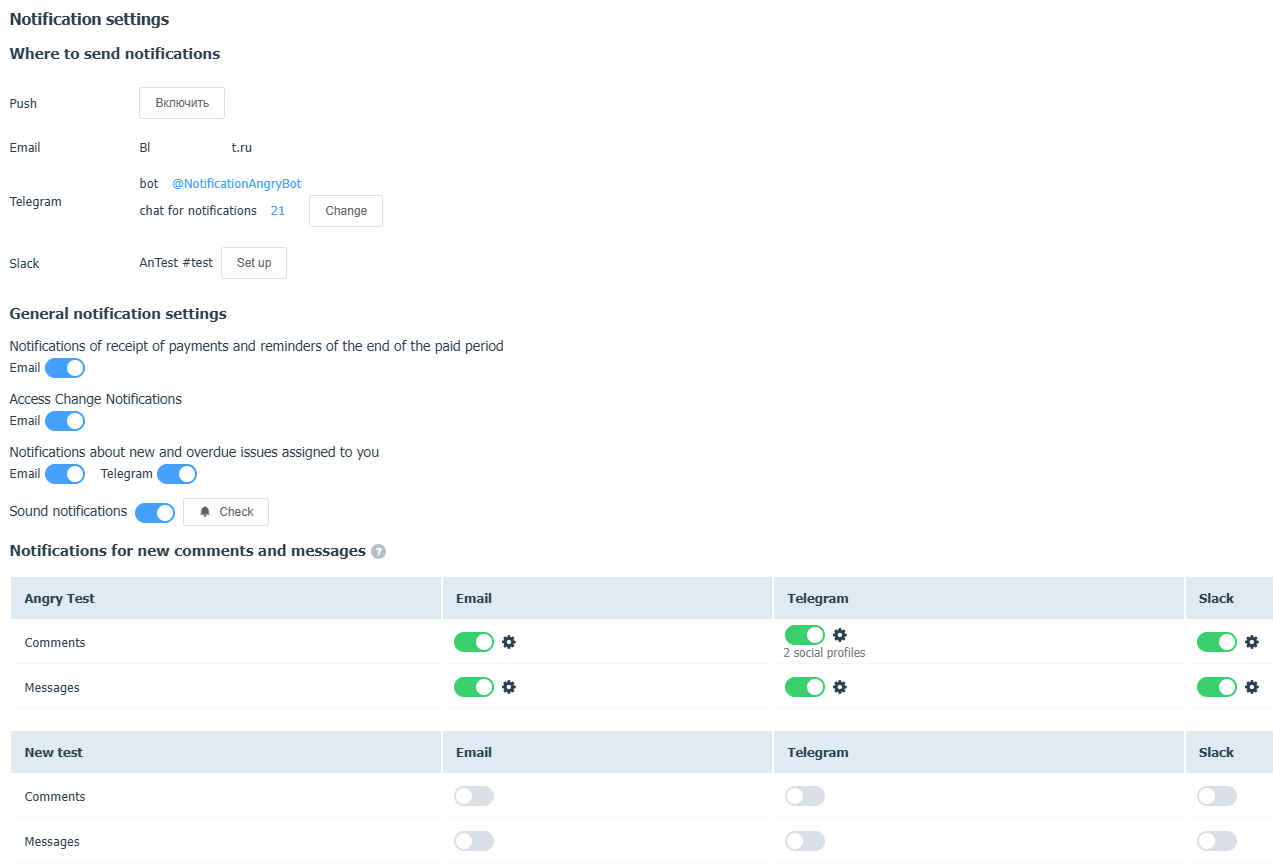
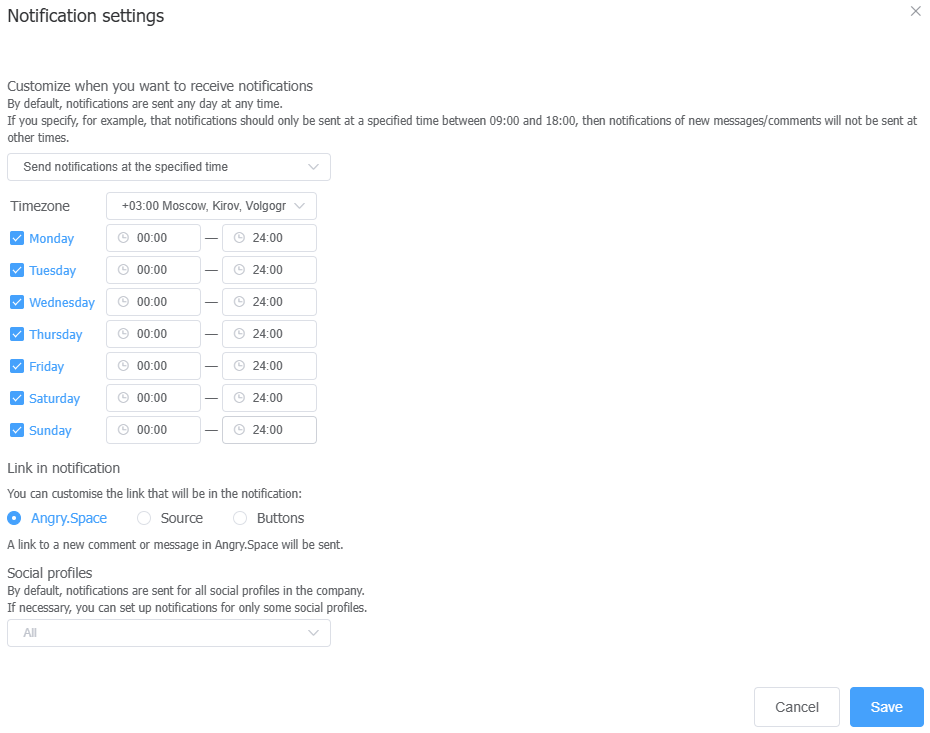
In the notification settings, you can set
- when to receive notifications (for example, exclude weekends or night hours),
- select only certain social profiles for which you would like to receive notifications (by default, event notifications are sent to all social profiles),
- choose the links you want to receive in the notification (to a request in the service or to social media).
Please note that it is not possible to separate notifications for individual social profiles/companies to different chats or email addresses within a single user.
The notification feed is separated only for different users of the service.
You want to configure notifications from different social profiles to be sent to different chats.
Solution:
If you have multiple users in the service:
The first user sets up notifications to be sent to Group Chat 1, and in the additional settings, selects Social Profile 1.
The second user sets up notifications to be sent to Group Chat 2, and in the additional settings, selects Social Profile 2.