Huawei AppGallery connection
To connect the collection of reviews from Huawei AppGallery and process them in the service, you will need:
- the URL or App ID of your app,
- Client ID,
- Key.
You can obtain these in AppGallery Connect after creating a new shared API client.
To be able to configure it, your account in Huawei AppGallery Connect must have Administrator or Owner permissions.
STEP 1: Create an API Client
To be able to obtain the Client ID and Key required for connecting the source in the service, follow these steps:
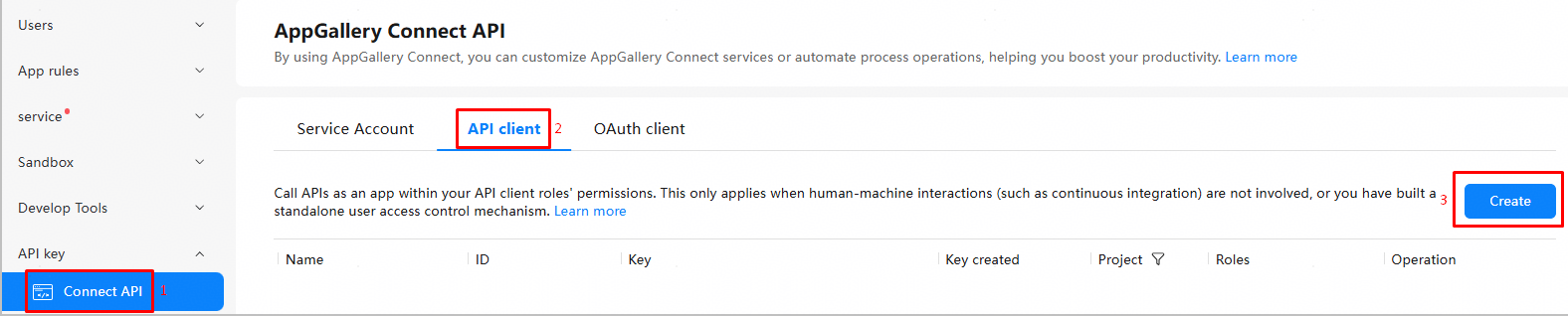
- InAppGallery Connect, select the "Users and permissions" section at the top of the screen
- In the left part of the screen, under the API Key section, select "Connect API"
- Select "API Client"
- Click the "Create" button
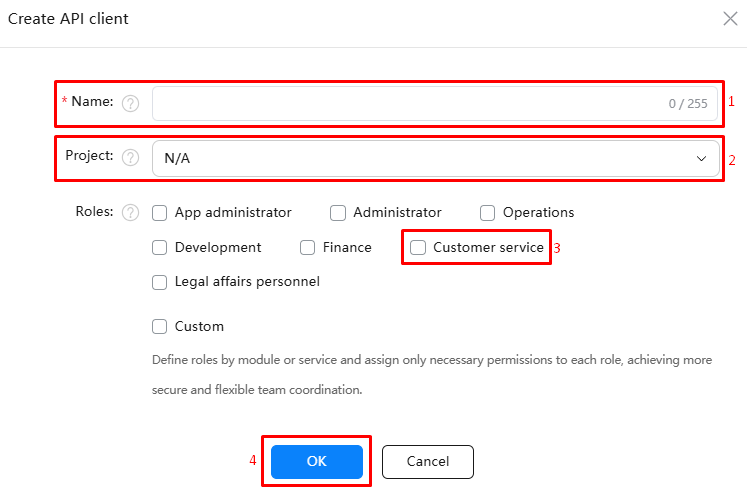
- In the window that opens, enter the name of the new API client
- In the "Project" field, specify N/A (there is no need to select a specific project)
- For the role, select "Customer service" — these permissions will be sufficient for the service to function correctly
- Click the "OK" button
STEP 2: Adding an account to Angry.Space
- Go toSettings - Social Profilesand click "Add Social profile" for the desired company
- In the window that opens, click the "Add" button next to Huawei AppGallery
- Go toAppGallery Connect, select the desired app and copy its ID or link in AppGallery
- Go back to the service tab and paste the app ID/app link into the corresponding field
- In AppGallery Connect, go to the Connect API section where you created the new API client, and copy first its ID, then the key
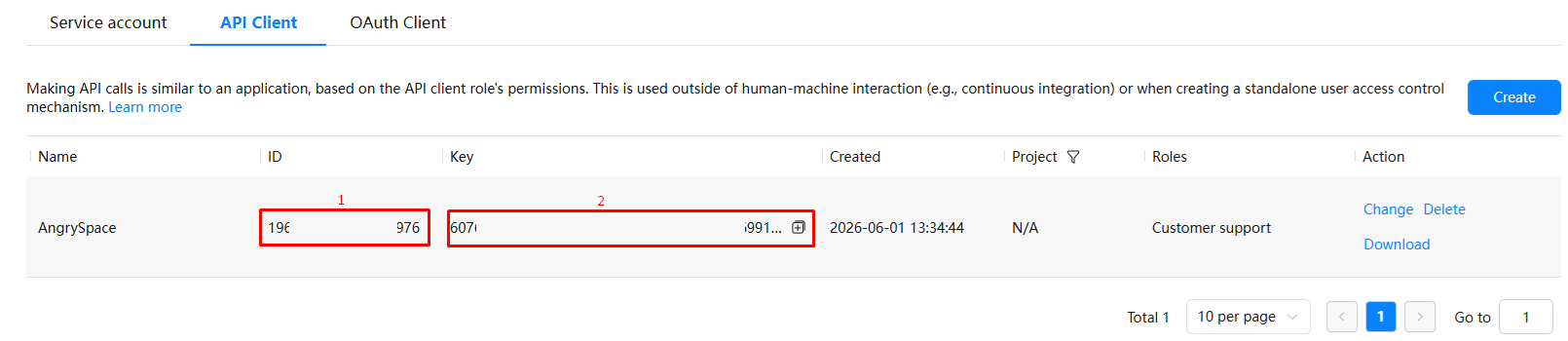
- Paste the data into the corresponding fields in the service
- Click the "Save" button